Summary
Easily transfer your simulation setup to new studies. SOLIDWORKS Simulation allows fast duplication of study data.
It is often beneficial to copy an entire simulation study into a new study. This can be used as a starting point for a new analysis while maintaining the original data. This workflow is often used if you are making small adjustments to the mesh, loads, or fixtures. It is also commonly used to copy all data from one study type to another, such as converting a Static study to a Nonlinear study to investigate large deformation or plastic deformation. To do this, right click the study tab name at the bottom and select “Copy Study”
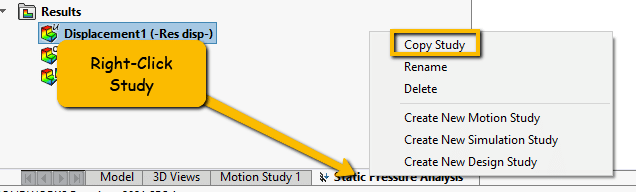 Copy the Entire Study
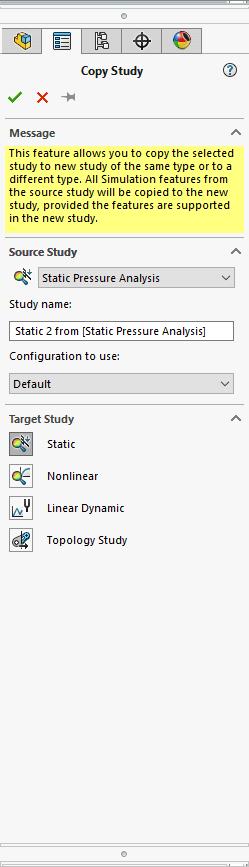 copy the data
The other method is to drag and drop features from one study to another and it will create a copy of all applicable features. This can be used to combine setup features of multiple studies or if you only want certain aspects of the study to copy into the new study. To do this, select the features that you want to copy in the feature manager tree (Hold “Control” while picking features to select multiple items) and drag the item over the name of the new study. Release your mouse to start the transfer. Note: a completed mesh can be copied to give multiple studies an identical mesh. This is useful for fatigue calculations or for copying an h-adaptive mesh to a study that does not support adaptive meshing.
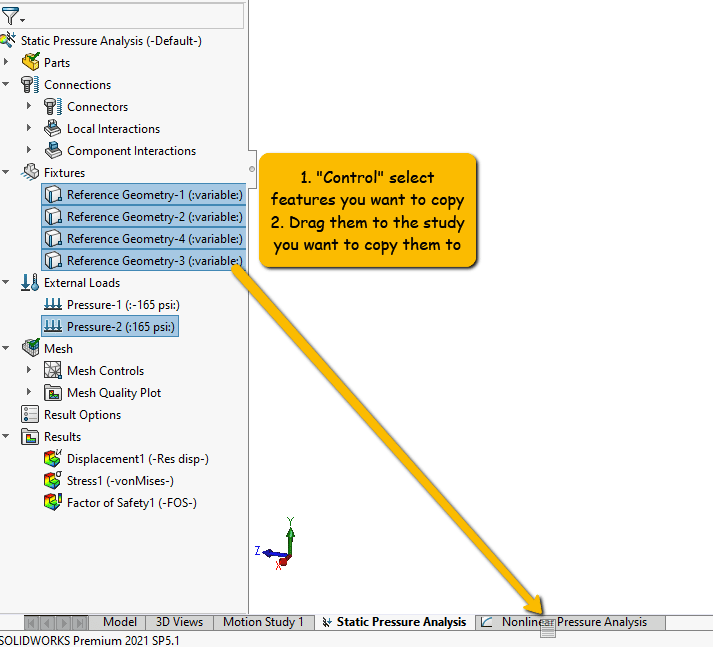 Copy Only Certain Aspects of the Study