Summary
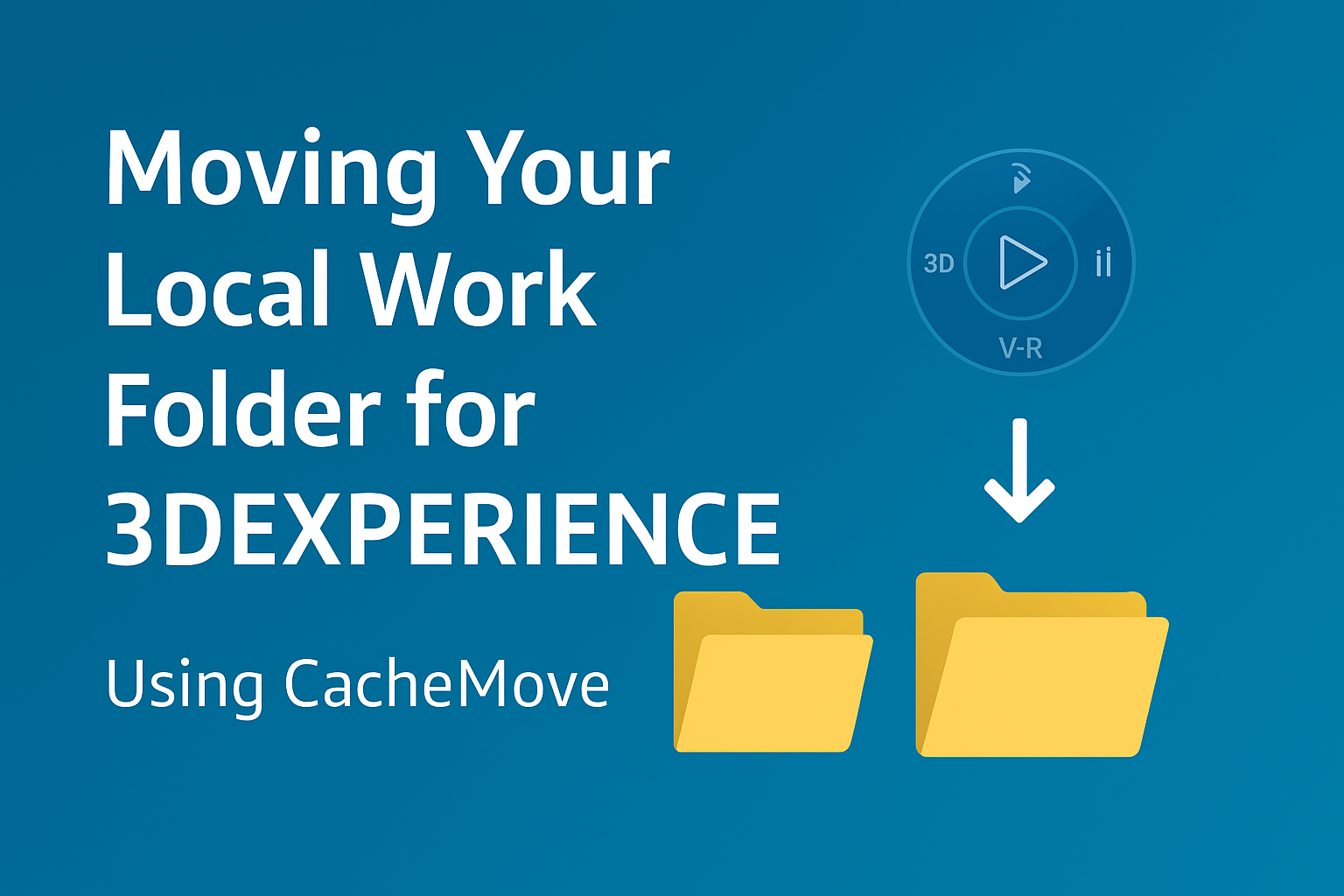
Learn how to safely move your 3DEXPERIENCE local work folder. Use the CacheMove utility for a seamless relocation process.
- Navigate to the CacheMove Utility Directory: In the elevated Command Prompt window, use the cd command to navigate to the directory where the CacheMove utility is located. The default installation path is:
- cd C:\Program Files\Dassault Systemes\BRRRxcadconnectors\win_b64\USWC
Note: Replace BRRR with the specific release number of your 3DEXPERIENCE installation.
- Execute the CacheMove Utility with the Desired Argument: At the command prompt within the specified directory, enter the CacheMove command followed by the appropriate argument to perform the desired action. Important Considerations:
-
-
-
- When using the CacheMove <path> command, ensure that the current local work folder is empty. If it contains files, this command will likely fail.
-
-
-
-
-
- The CacheMove –ne <path> command is used when you need to move a local work folder that already contains data.
- The CacheMove –ne <path> command is used when you need to move a local work folder that already contains data.
-
-
- Restart Your Machine: After successfully relocating the local work folder using any of the CacheMove commands, it is crucial to restart your computer for the changes to take effect.
By following these steps, you can effectively move your 3DEXPERIENCE local work folder to a new location using the CacheMove command-line utility. Remember to execute the commands with administrative privileges and restart your system after the move is complete.
Command Prompts Reference:
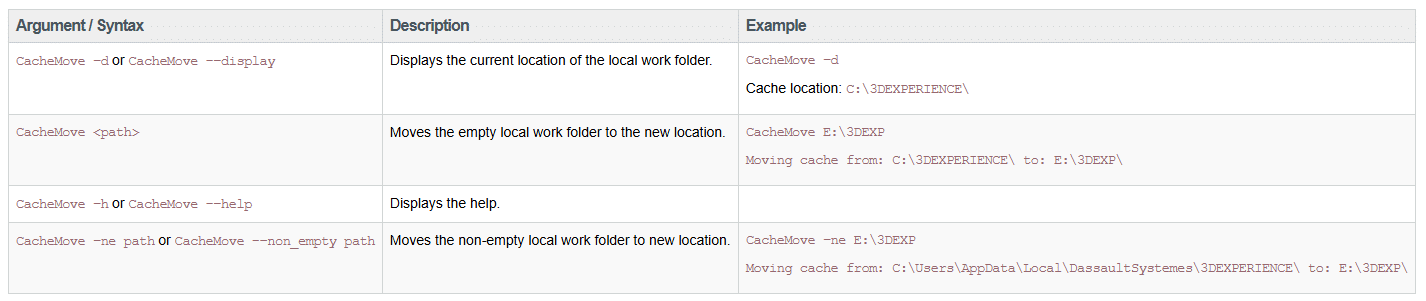 Command Prompts Reference
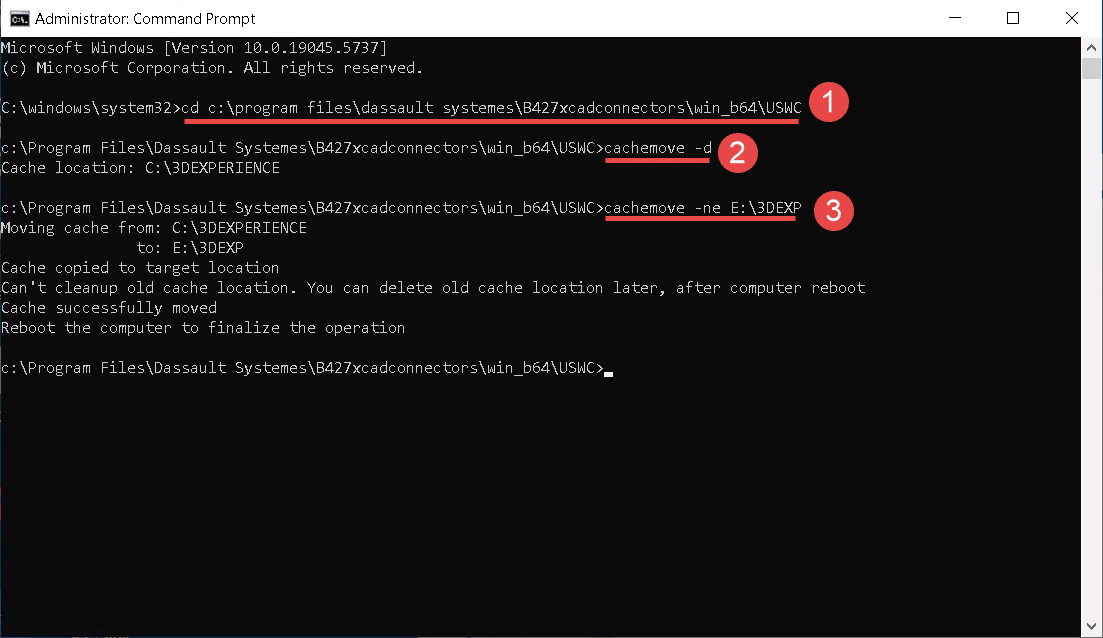 Command Prompt CMD
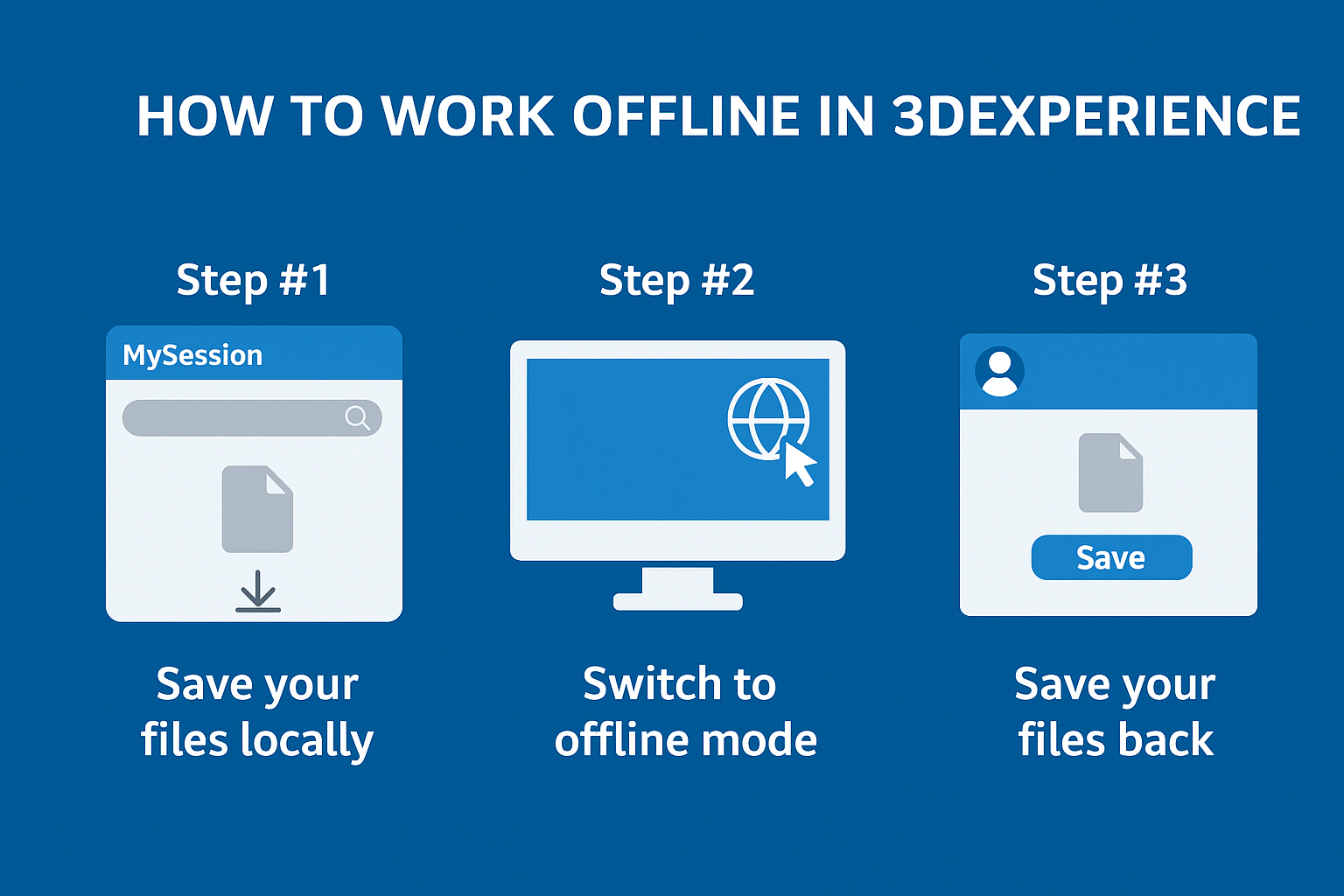
If you are not familiar with how to work offline in 3DEXPERIENCE, you can read this article.