How to Work Offline in 3DEXPERIENCE

How to Work Offline in 3DEXPERIENCE

Summary

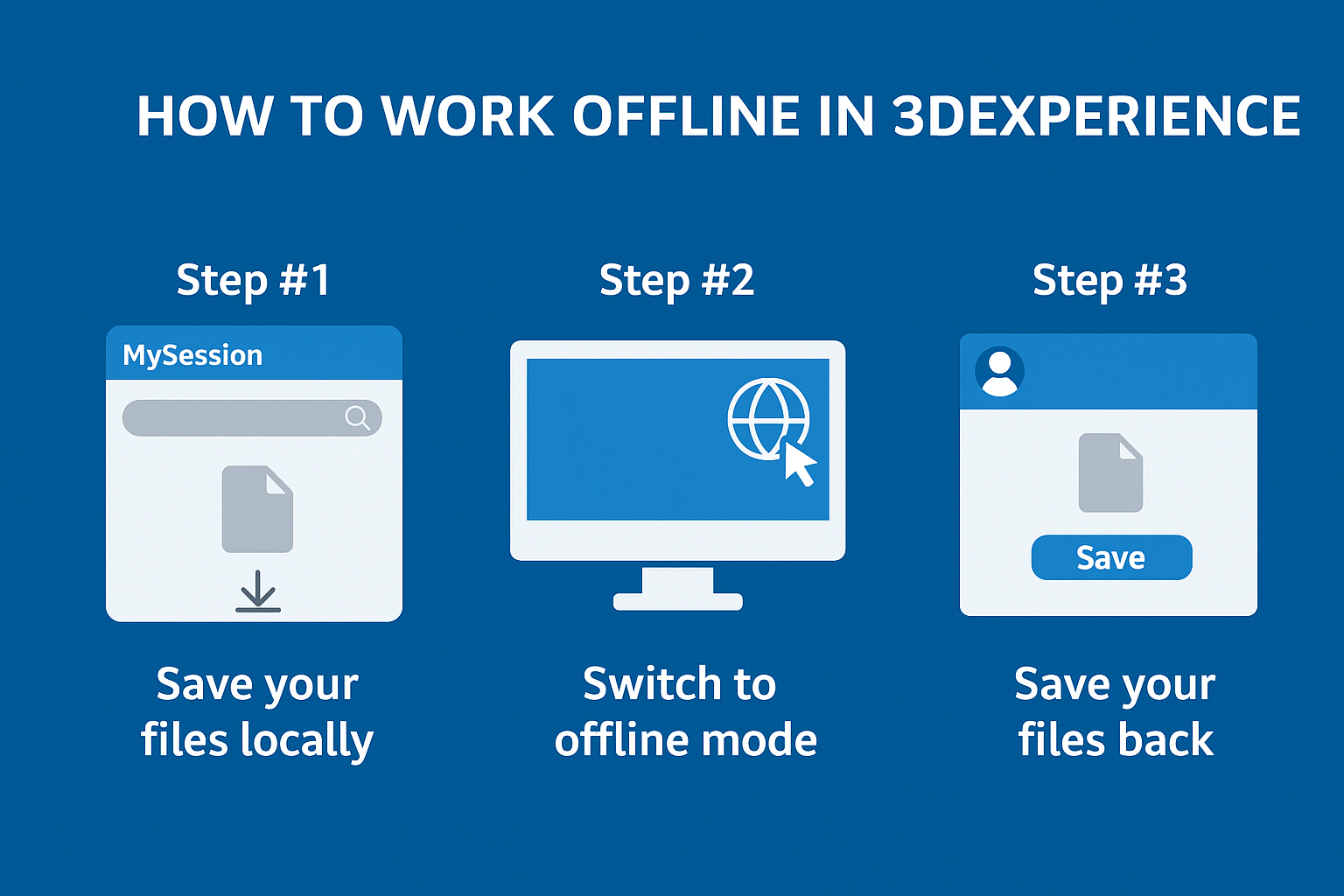
Cache your files first, then switch to offline mode. You can work up to 30 days without internet.

3DEXPERIENCE SOLIDWORKS makes it easy to work offline for up to 30-days with only a few simple steps. Before you begin, note that any file you want to work on while offline must be opened in 3DEXPERIENCE SOLIDWORKS on the specific computer that will be working offline before switching to offline mode. This saves a local copy which is available while working offline. 

Step #1: Save Your Files Locally

Files you open in 3DEXPERIENCE SOLIDWORKS are cached/saved locally to your computer. Simply open the model/file(s) you plan to work on before switching to offline mode. Log into the 3DEXPERIENCE platform and launch the SOLIDWORKS Connected App or launch it from the SOLIDWORKS Connected shortcut on your desktop. 


Search for the model(s) you would like to open in the MySession task pane and either drag and drop it into the SOLIDWORKS application or choose ‘Open from 3DEXPERIENCE’. A copy of the file is now cached locally. 


We also recommend locking the file and any of its components on the platform to prevent anyone else from making changes while you work on the file offline. 

Step #2: Switch to Offline Mode

In the upper right corner of SOLIDWORKS, click your user icon and then click the globe icon next to Work Offline’ as shown below. 


3DEXPERIENCE SOLIDWORKS offline mode selection option3DExperience SOLIDWORKS

A dialog box will display with information pertaining to working offline and an option to set the offline time from 1-30 days. The message also states to make sure you have created a desktop shortcut for each of your locally installed apps from the 3DEXPERIENCE platform so you can open them while you are offline. For example, you might want to create a shortcut for your Assembly Design and Part Design apps. 

Once you read the message fully, click ‘OK’ to switch to offline mode and start working on your files. 

3DEXPERIENCE SOLIDWORKS offline mode dialog box screenshot3DExperience Offline Mode

While working offline, you can mouse over the globe icon in the upper right to view the offline status. 

3DEXPERIENCE SOLIDWORKS offline status indicator3DExperience Working Offline
 

Step #3: Save Your Files Back to the 3DEXPERIENCE Platform

To switch back to online mode, simply click your user icon and then click the globe icon next to Work Offline again. Open the file(s) you saved locally while in offline mode and then save them to the 3DEXPERIENCE Platform as normal. 

3DEXPERIENCE SOLIDWORKS reconnecting to online mode process3DExperience Offline Reconnect

The SOLIDWORKS save options now include ‘Save to 3DEXPERIENCE’ and you are back to working online. 

3DEXPERIENCE SOLIDWORKS returning to online mode screen3DExperience SOLIDWORKS Online Mode
 

If you need a guide on deleting files and objects in 3DEXPERIENCE, then this blog post is perfect for you.

Back to All Posts 3dexperience Category

Admin User

Content Editor & SolidWorks Expert

10+ years of experience in SolidWorks and CAD technologies. Writes articles focused on industrial design and automation.